Sharing a private promotion
Everything you need to know about sharing a private promotion using InviteLinks.
Private Promotions are only available on the Premium and Enterprise plans
Automated Sharing
You can programmatically request a unique one-use (or multi-use) URL to send to each individual you wish to invite to play your game. The links can be anonymous or encode a user's details such as name and email address or any other data you wish to pass through, such as order number, company, etc. The BeeLiked API enables you to request these InviteLinks on-demand, as well as retrieve data related to their usage.
You can read more on this here
How to use the API to generate unique one use InviteLinks
Manual Sharing
Head over to the Share Centre. You can access that from the main left-hand menu.

There are only two choices when sharing a private promotion—anonymous or personalized invites.
The first thing you want to do is select the promotion you want to share.
You can only see Live Promotions here. If you want to share a draft promotion, you can get the ULR from the Launch Control module

Once you've chosen your promotion, you must decide the type of Invite you want to create.

1. Anonymous Invite Links
Choose anonymous and choose how many invites you would like to create
As the Invite is anonymous, remember to keep a record of who receives each InviteLink. If you would like a record in BeeLiked, you can turn on the entry form so people can fill in their details. If you don't do this, the platform cannot map a result to a recipient.

You can select an automatic expiration date for your InviteLink(s) if you have an Enterprise plan.

Then click on Generate. If you have more than 500, they will be queued, and you'll be notified via email when they are ready for you to download. If you generate less than 500, they will be done immediately, and you'll see something similar.

You can now copy and paste this link/QR code into an email or share it with your recipient in any way you wish.
2. Personalized Invite Links
Decide whether to create the Invites manually or upload a CSV file and do them in bulk.
If you include an email when creating the Invite you will be able to use the BeeLiked platform to send your invites for you once you have masked your email address.
2.1 Create Individually
Fill in the form with the relevant details

Ensure you only add new fields here once you've added them to the promotion entry form.
You can select an automatic expiration date for your InviteLink(s) if you have an Enterprise plan.
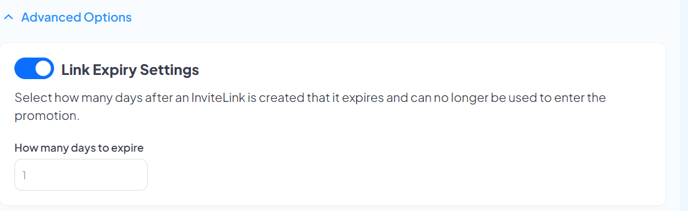
Once you've finished adding the details, click Generate and you'll see something similar to this.
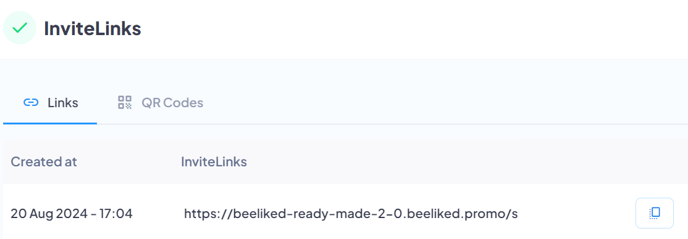
You can now copy and paste this link/QR code into an email or share it with your recipient in any way you wish.
2.2 Create in Bulk
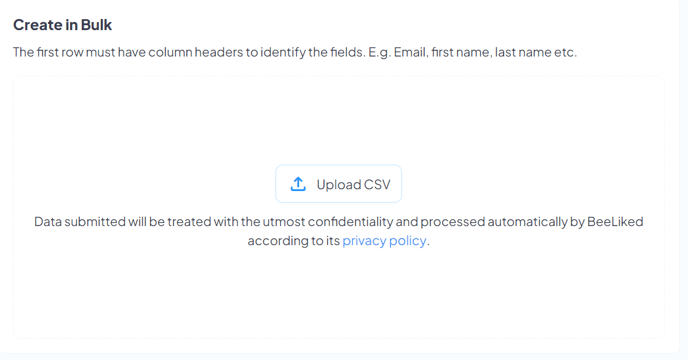
Click on Upload CSV
You then need to match the columns in your CSV file to the expected fields according to what you've set on the promotion's entry form.
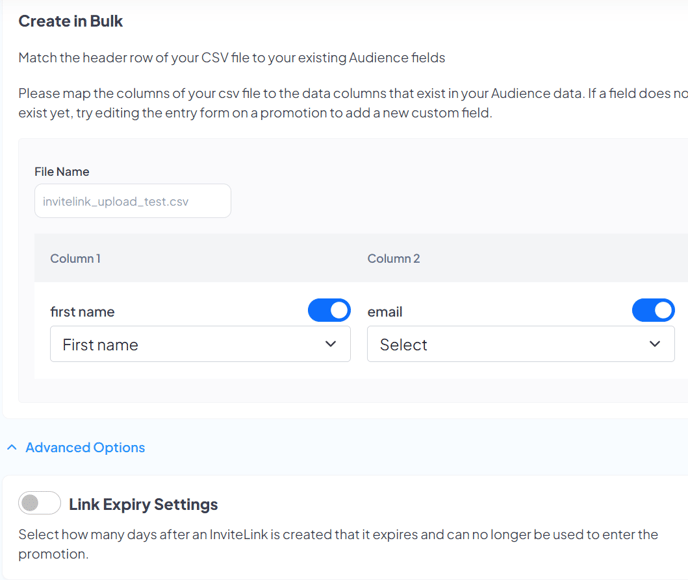
You can select an automatic expiration date for your InviteLink(s) if you have an Enterprise plan.
Once you've matched the fields, click Generate.
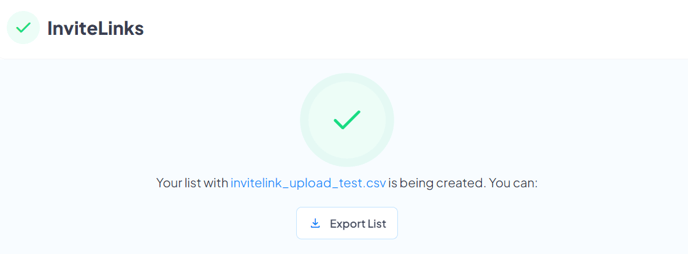
If you have more than 500 recipients, the export will be queued, and you'll be notified via email when it's ready for you to download. If you generate less than 500, it will be done immediately.
2.3 Send your Invites via email
If you have included an email address when creating your InviteLink(s) you will see an option to send your InviteLink via the platform.
2.3.1 Configure Email Sending
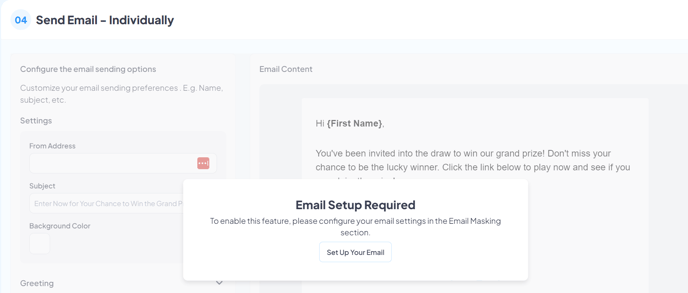
The first time you try to send an email via the platform you may see this message. If you do just click on Set Up Your Email. Once that's done you can continue.
2.3.2 Customize Email
Assuming you have correctly masked you email address you will now be able to edit the email template that you will use to send your InviteLink(s) .
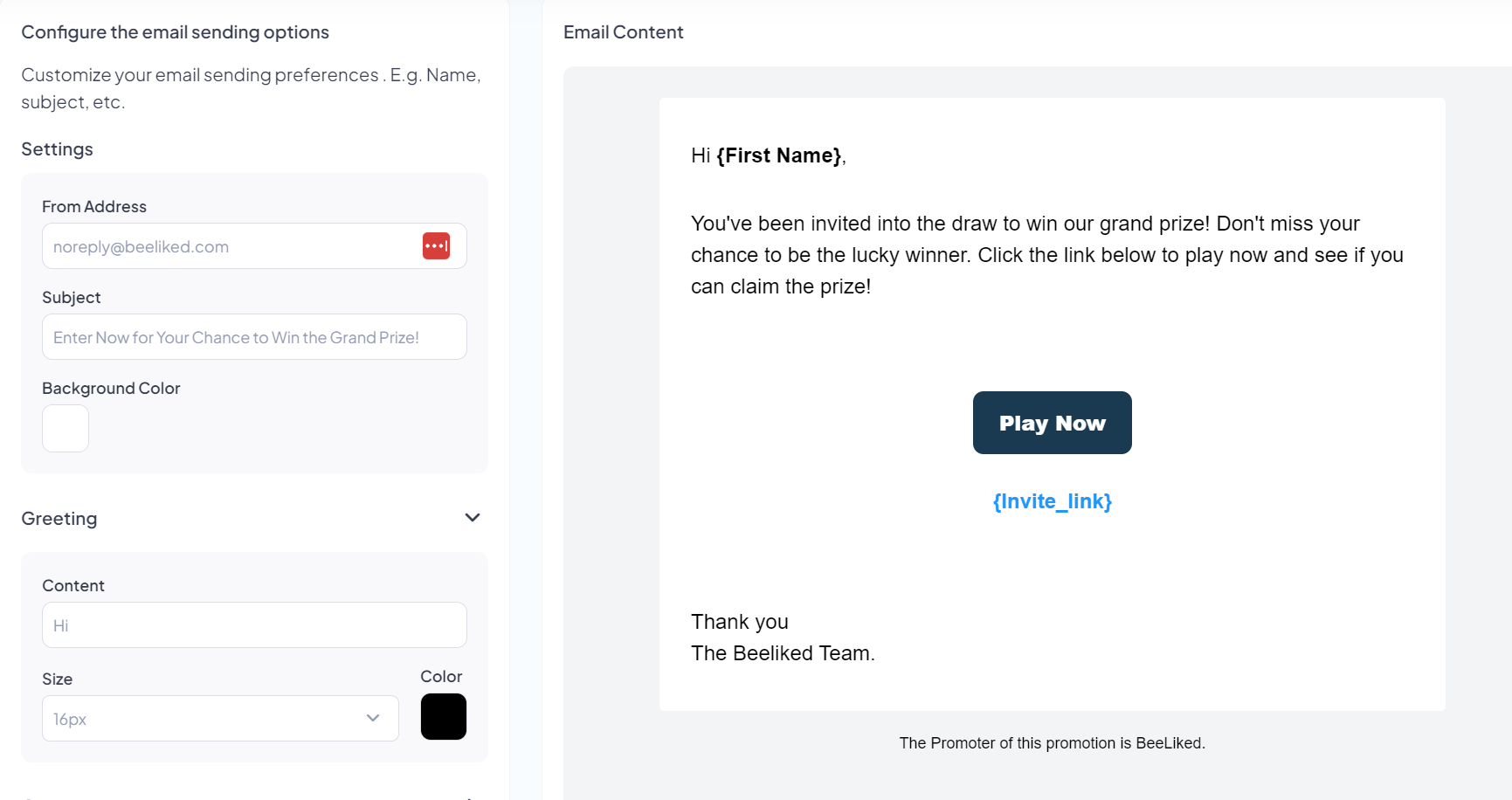
There are a number of different sections to the email which you can configure.
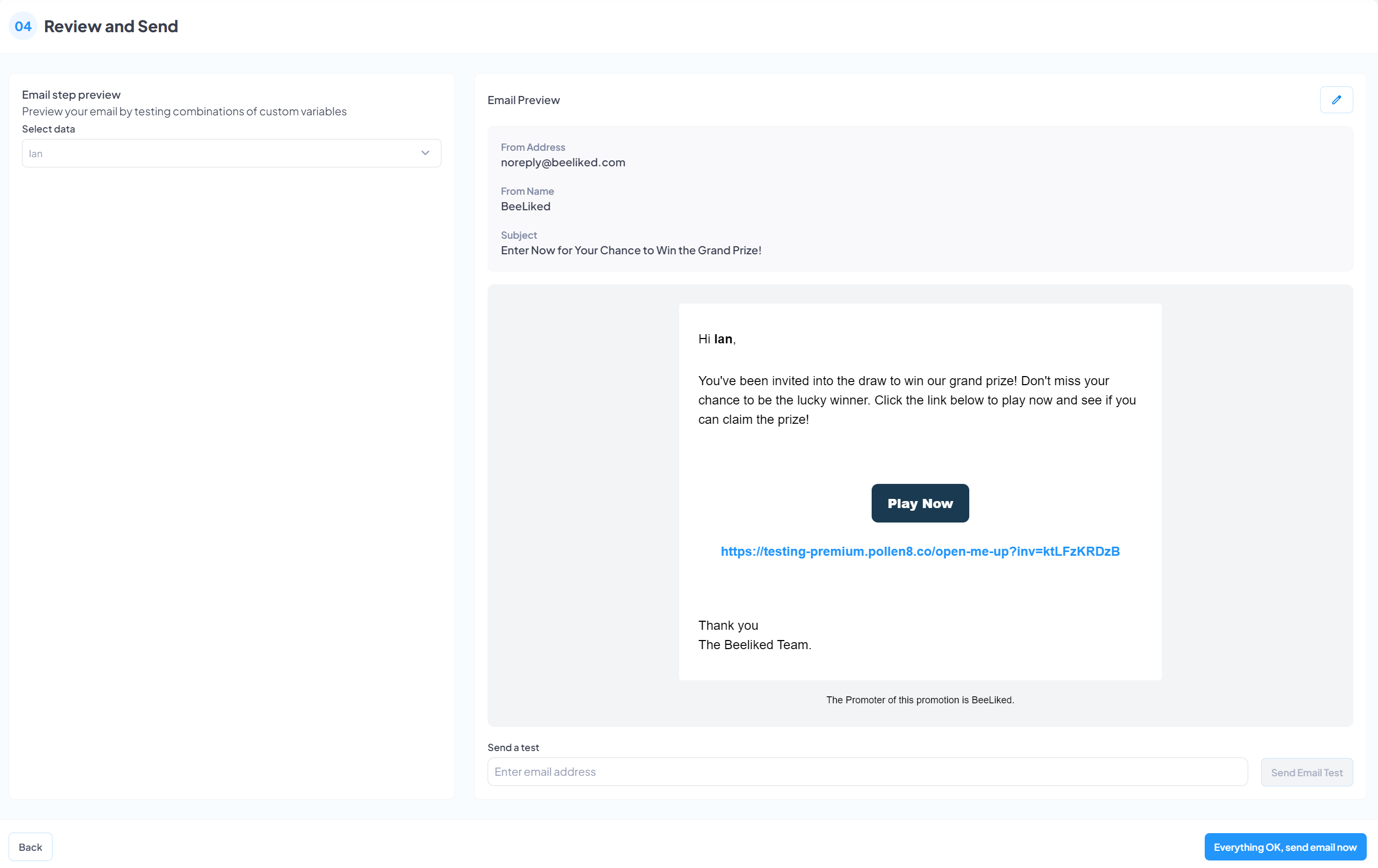
2.3.3 Send a Test Email
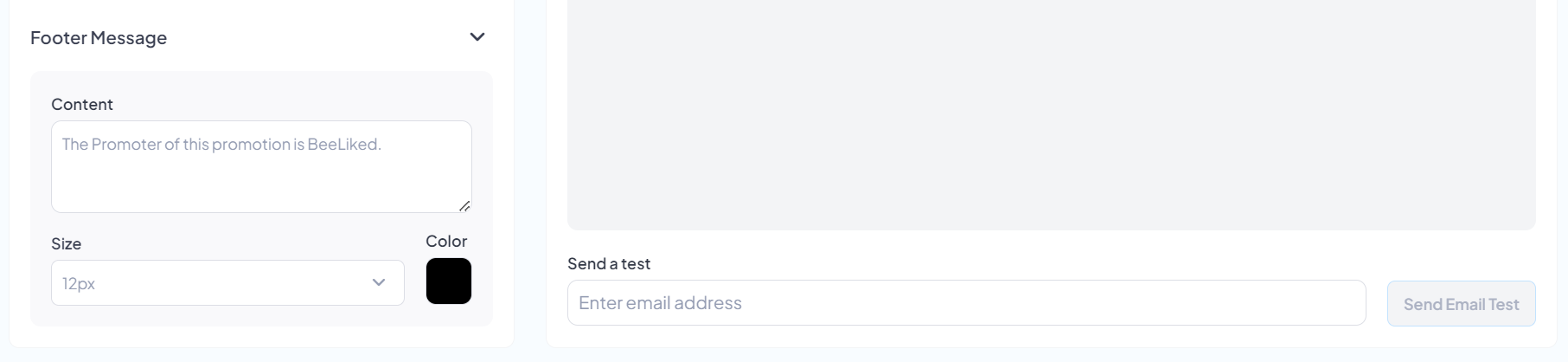
In case you want to send a test email out before you send out your InviteLink(s) just add in the email you want to send a test to and press Send Email Test.
2.3.3 Send your InviteLinks
Once you are happy with the email you can go ahead and click the Send Email Now button. The platform will now email all the InviteLink(s) that you've selected.
Updated on: 27/03/2026
Thank you!